 Baseplate
Get building.
Everything you need to use Baseplate. It's early in development, so things change quickly. Press / to search.
Install #
- Download the installer from the download page (downloads open soon).
- Run it. It installs just for you, so it doesn't need admin rights.
- If Windows SmartScreen appears, click More info, then Run anyway. The app isn't code-signed yet.
- Open Baseplate and Sign in with Roblox. You sign in on roblox.com, so Baseplate never sees your password.
Requirements: Windows 10 or 11 (64-bit), a graphics card with DirectX 11, an internet connection and a Roblox account. Updates install themselves; use Help › Check for Updates to check now.
Your first project #
Baseplate opens on the Home screen:
- New Baseplate: an empty baseplate with a spawn.
- Templates: Starter Scene, Obby, Village and Coin Rush. Each one is a normal project you can change.
- Recent: projects you've opened. Right-click a project to archive it or show it in Explorer.
- Archive: projects you've put away. Your files are never deleted.
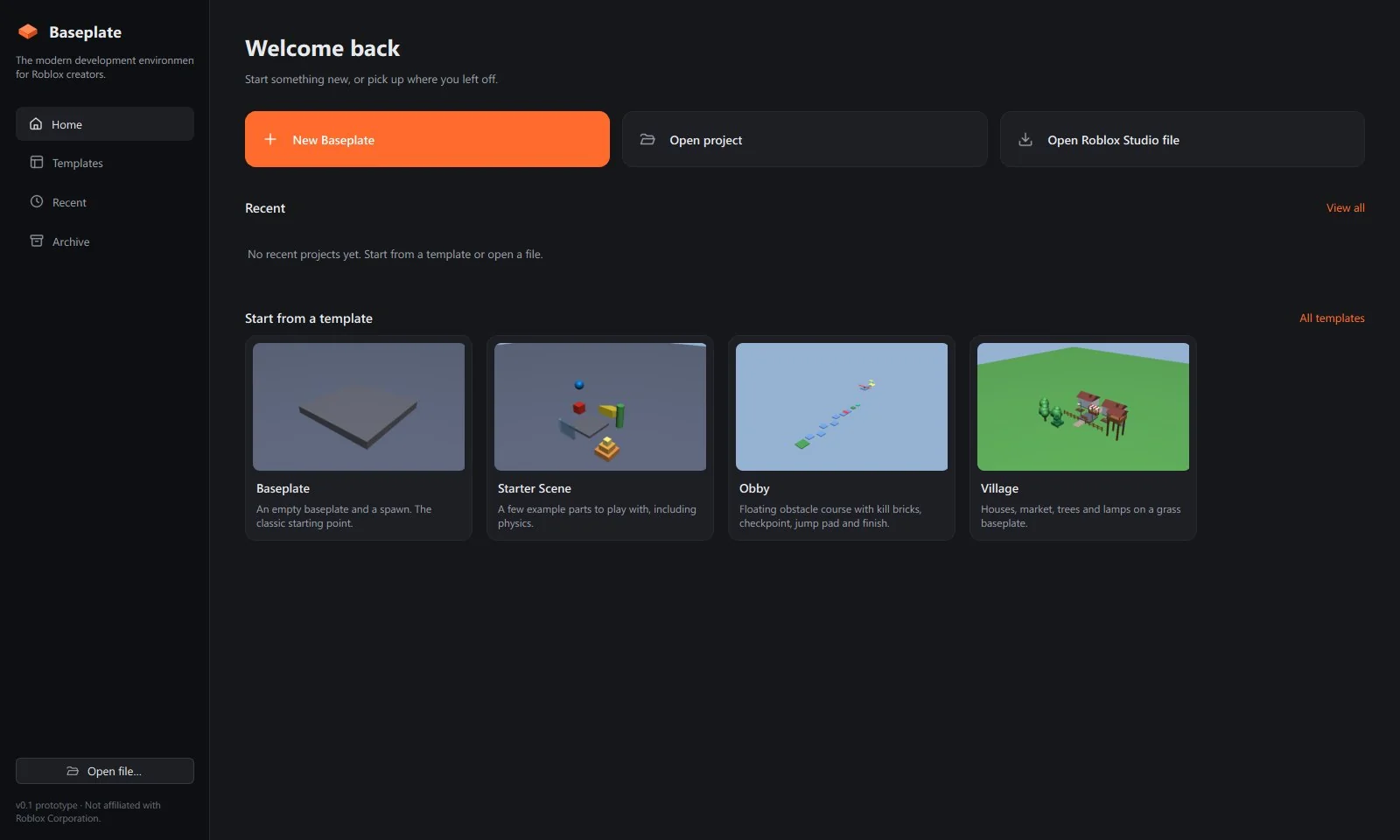
Save with Ctrl S. Projects are saved as .bpproj files.
The interface #
| Panel | What it does |
|---|---|
| Explorer (left) | Everything in your place. Search with Ctrl F, drag to reparent, F2 to rename. |
| Viewport (centre) | Your 3D world. Click to select. Scripts open as tabs here. |
| Properties (right) | Edit the selected object. Filter properties by name. |
| Bottom panel | Output, Console, Toolbox and a list of every script. |
Camera & shortcuts #
| Action | Shortcut |
|---|---|
| Look around | Right mouse drag |
| Fly | W A S D · Q / E down / up · hold Shift to go slower |
| Pan | Middle mouse drag |
| Zoom | Mouse wheel (zooms towards the cursor) |
| Orbit | Alt + left drag |
| Focus selection | F |
| Select / Move / Scale / Rotate | Ctrl 1 / 2 / 3 / 4 |
| Duplicate · Group · Ungroup | Ctrl D · Ctrl G · Ctrl U |
| Undo · Redo | Ctrl Z · Ctrl Y |
| Play · Stop | F5 · Shift F5 |
Move, scale, rotate #
Select a part, then drag a handle. The move arrows slide along an axis, scale handles resize one face (like Studio), and rotate rings turn the part around an axis. You can also drag a part directly to slide it along the ground.
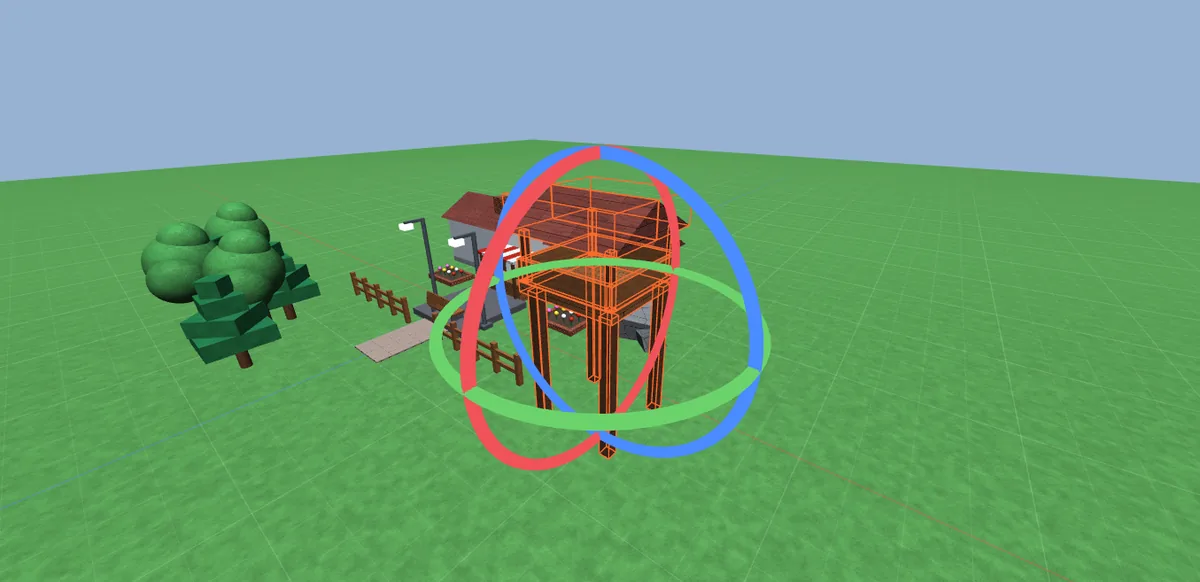
Snapping is on by default. Change the step (for example 1 stud or 15°) in the toolbar, or toggle it with Ctrl Shift G.
Toolbox #
Open the Toolbox tab in the bottom panel. Click an item to insert it in the middle of your view, or drag it to a spot in the viewport. Everything in the Toolbox is made by the Baseplate team, so there are no hidden scripts.
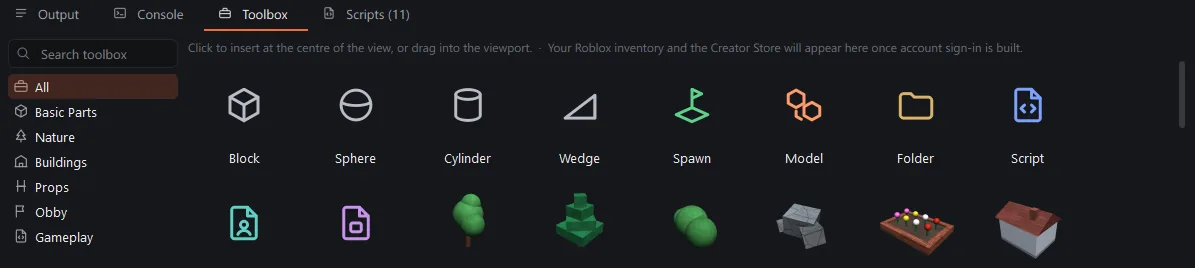
Obby and gameplay items include ready-to-use Luau scripts. They run when you open your exported place in Roblox Studio.
Scripts #
Double-click any Script, LocalScript or ModuleScript to open it in the editor, which has Luau syntax highlighting and auto-indent. Changes save into the project automatically.
Play mode #
Press Play to run a physics test: unanchored parts fall and collide. Press Stop and everything goes back to how it was.
Luau scripts don't run inside Baseplate yet. To test scripts, export your place and press Play in Roblox Studio.
Opening Studio files #
Use Open Roblox Studio file on the Home screen, or File › Open. Baseplate reads .rbxl, .rbxlx, .rbxm and .rbxmx. A progress window shows while large places load, and you can cancel it at any time.
MeshParts, unions, decals and textures need a Roblox connection (below). Until they've downloaded, they show as plain boxes.
Connect Roblox #
You sign in with Roblox when Baseplate first opens. To download meshes, textures and materials, Baseplate also uses Roblox's official Open Cloud API with an API key from your own account. It never asks for your password, and keys are stored in Windows Credential Manager.
- Open Tools › Roblox Connection (or Connect Roblox on the Home screen).
- Click Open Roblox Credentials page and choose Create API Key.
- Add the Legacy Asset (asset delivery) API with Read permission.
- Under Accepted IP Addresses, add
0.0.0.0/0. - Save, copy the key, paste it into Baseplate and click Test & Save.
The first time you open a big place it can take a few minutes to download everything; the status bar shows how many are left. After that, everything is cached and loads instantly.
Group assets: meshes owned by a Roblox group need a key made by that group. In the Creator Dashboard, switch to the group, create a key with Legacy Asset read access, then add it under Group keys in the Roblox Connection window. Baseplate tries each key in turn.
Meshes or unions that are private to someone else's account are shown using their collision shape, so they keep roughly the right form instead of becoming boxes.
Export to Studio #
File › Export as Roblox Place writes a .rbxl (or .rbxlx) file you can open in Roblox Studio with File › Open from File.
Export is lossless: every property Baseplate read is written back, including ones it can't edit yet, so unions, welds, attributes and terrain data come through unchanged. Baseplate is still early, so keep a copy of your original place file anyway.
FAQ #
Is Baseplate made by Roblox?
No. Baseplate is an independent project and is not affiliated with, endorsed by, or sponsored by Roblox Corporation.
Is it free?
Yes, while it's in development.
Can I publish to Roblox from Baseplate?
Not yet. It's planned through the official Open Cloud API. For now, export to .rbxl and publish from Studio.
When can I download it?
Soon. Join the Discord to hear the moment downloads open.
Mac or mobile?
Windows only for now.
Where do I get help?
Join the Baseplate Discord and post in #help. Report bugs in #bug-reports. See the community page for what to include.