 Baseplate
Get building.
The complete guide to Baseplate: from your first part to publishing a game on Roblox. Baseplate is in active development, so features arrive quickly and this page grows with them. Press / to search, or Ctrl / inside the app to see every shortcut.
Install #
- Download the installer from the download page (downloads open soon).
- Run it. It installs just for you, so it doesn't need admin rights, and it adds a Start menu shortcut.
- If Windows SmartScreen appears, click More info, then Run anyway. The app isn't code-signed yet, so Windows doesn't recognise it.
- Open Baseplate and Sign in with Roblox. You sign in on roblox.com in your browser, so Baseplate never sees your password.
Requirements
| Item | What you need |
|---|---|
| System | Windows 10 or 11, 64-bit |
| Graphics | Any graphics card or built-in GPU with DirectX 11 |
| Internet | Needed to sign in, download meshes and textures, publish, and get updates |
| Account | A Roblox account. Publishing and asset downloads also use a free Open Cloud API key (see Connect Roblox). |
Updates download and install themselves. See Updates for the beta channel and manual checks.
Uninstalling
Use Settings › Apps in Windows, find Baseplate and choose Uninstall. Your projects are ordinary files, so they stay where you saved them.
Your first project #
The quickest way to learn Baseplate is to build something small. This takes about five minutes.
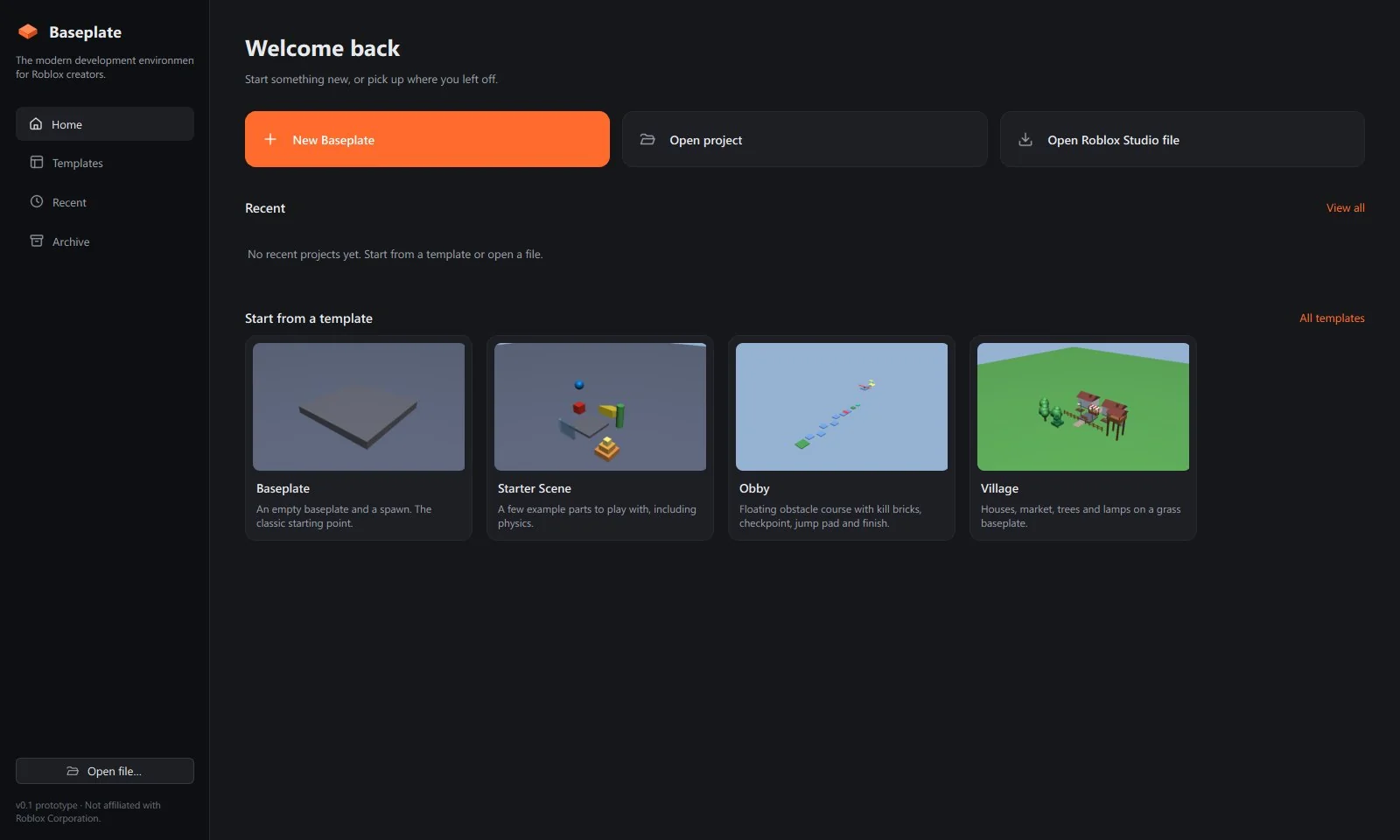
- On the Home screen, click New Baseplate. You get a flat baseplate with a spawn location, the same as a new place in Studio.
- Press Ctrl Shift P to add a block in front of the camera.
- Press Ctrl 2 for the Move tool and drag the arrows to place it. Press Ctrl 3 to resize it.
- In Properties, change Color and Material, and tick Anchored so it doesn't fall.
- Press F5 to play. Unanchored parts fall and collide. Press Shift F5 to stop, and everything goes back to how it was.
- Press Ctrl S to save. Projects are saved as
.bpprojfiles wherever you choose.
When you're happy with it, publish it to Roblox with Alt P, or test it in Roblox Studio with Ctrl F5.
The Home screen #
Baseplate opens on Home. Come back to it at any time with File › Close Project (Ctrl Shift W).
- New Baseplate: an empty baseplate with a spawn.
- Open project: a Baseplate
.bpprojfile. - Open Roblox Studio file: a
.rbxl,.rbxlx,.rbxmor.rbxmx(see Opening Studio files). - Templates: Starter Scene, Obby, Village and Coin Rush. Each one opens as a normal project you can change however you like.
- Recent: everything you've opened lately. Right-click a project to Pin to top, archive it or show it in File Explorer.
- Pinned: projects you pin stay at the top, however long ago you opened them.
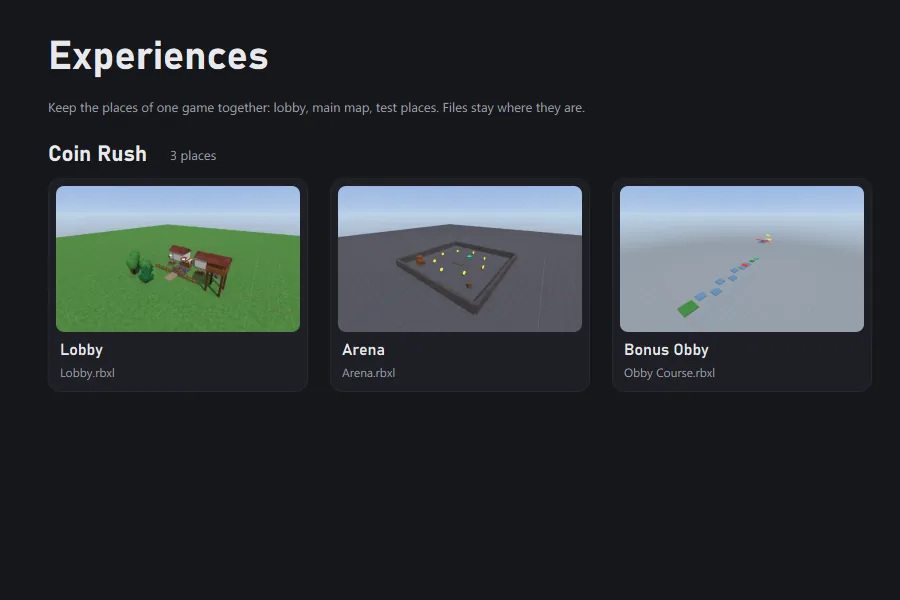
- Experiences: group the places of one game (a lobby, a few levels, a test place) so they sit together instead of being scattered through your recents.
- Archive: projects you've put away. Archiving only hides a project from Recent; your files are never deleted.
The interface #
If you've used Roblox Studio, the layout will feel familiar. Every panel can be moved, docked, floated or closed, and Baseplate remembers where you put them. View › Reset Layout puts everything back.
| Panel | What it does |
|---|---|
| Header | Menus, the project name, and the Test and Publish buttons. |
| Toolbar | Tools, snapping steps, colour and material pickers, Anchor and Lock. Turn on tool names in Studio Settings. |
| Explorer | Everything in your place, as a tree. Alt X shows or hides it. See Explorer. |
| Viewport | Your 3D world. Scripts open as tabs alongside it. |
| Properties | Every property of the selection. Alt Shift P shows or hides it. See Properties. |
| Bottom panel | Tabs for Output, Console, Toolbox, Scripts and Notes. Alt O shows or hides it. |
| Status bar | The mode (EDIT or PLAY), a hint for the current tool, and counts for the place and selection. |
The bottom panel's tabs:
- Output: messages from Baseplate, such as what loaded, what was exported and any problems.
- Console: a log of what's happening while you work and play.
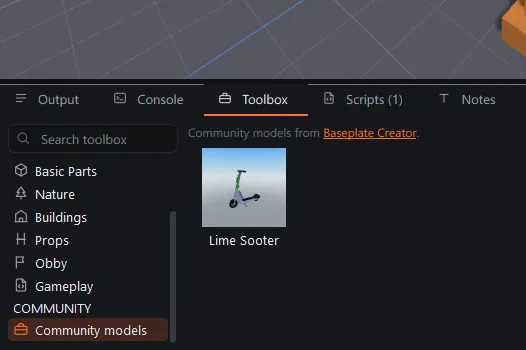
- Toolbox: ready-made models, your own saved assets and community models (see Toolbox).
- Scripts: every script in the place in one list. Double-click to open one.
- Notes: notes and a task list for this place (see Notes & tasks).
Showing on-screen UI: ScreenGuis are drawn over the viewport so you can see your interface while you build. View › Show UI (Alt U) hides them when they get in the way.
Camera & navigation #
The camera works like Studio's, with a few extras.
| Action | How |
|---|---|
| Look around | Hold the right mouse button and drag |
| Fly | W A S D · Q / E down / up |
| Fly slower | Hold Shift (how much slower is set in Studio Settings › Camera) |
| Pan | Middle mouse drag |
| Zoom | Mouse wheel. It zooms towards whatever is under the cursor, not the centre of the screen. |
| Orbit | Alt + left drag |
| Focus selection | F flies the camera to whatever is selected |
In Studio Settings › Camera you can change mouse sensitivity, the Shift speed and invert vertical look. Studio Settings › Viewport turns the ground grid and sun shadows on or off. These only change how the editor looks, never the place itself.
Selecting #
- Click a part to select it. If the part is inside a model, the whole model is selected, as in Studio.
- Alt + click selects the exact part under the cursor, even when it's deep inside a model.
- Ctrl or Shift + click adds to or removes from the selection.
- Ctrl A selects everything.
- Click anything in the Explorer to select it there, including objects you can't see, such as scripts and lighting.
- Locked parts can't be clicked in the viewport, so a baseplate or backdrop won't get in the way. Select them from the Explorer instead.
Move, scale, rotate #
| Tool | Shortcut | What it does |
|---|---|---|
| Select | Ctrl 1 | Click to select, drag a part to slide it along whatever it's resting on. |
| Move | Ctrl 2 | Arrows slide the selection along one axis. |
| Scale | Ctrl 3 | Handles resize one face at a time, like Studio. |
| Rotate | Ctrl 4 | Rings turn the selection around an axis. |
| Transform | Ctrl 5 | All three at once: arrows move, dots resize, rings rotate. |
| Measure | Ctrl M | Distances, angles and sizes. See Measure tool. |
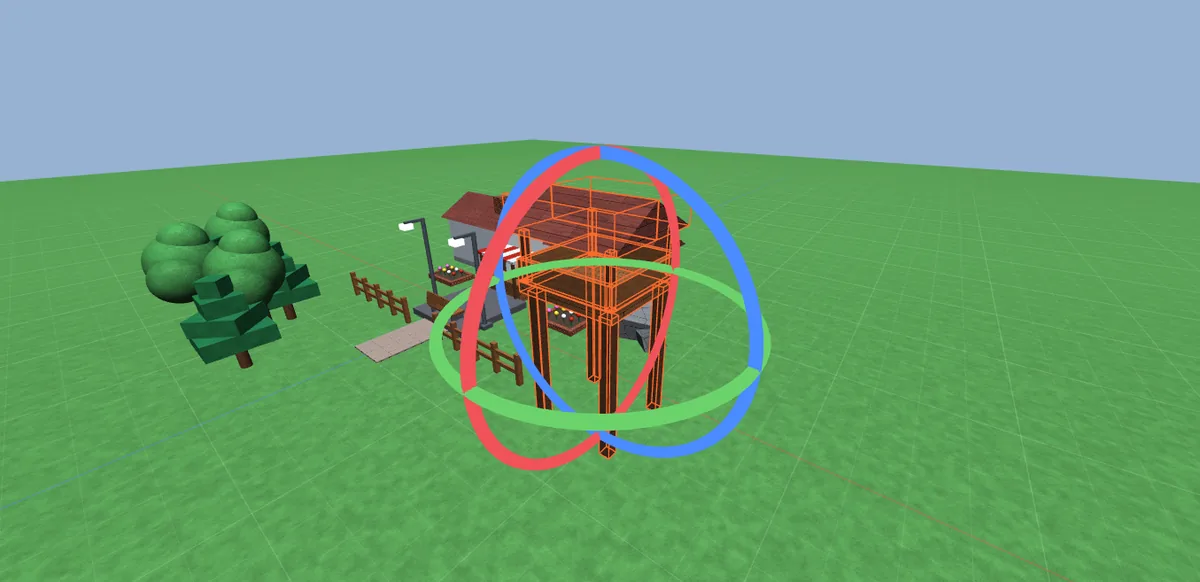
Everything you do can be undone with Ctrl Z and redone with Ctrl Y. For exact values, type them straight into Position, Orientation or Size in Properties.
Duplicating and grouping
- Ctrl D duplicates the selection in place, ready to move.
- Ctrl G groups the selection into a Model. Ctrl U ungroups it.
- Ctrl C and Ctrl V copy and paste, including into another project.
Snapping #
Snapping is on by default so parts line up neatly. Set the steps in the toolbar:
- Move step: anything from 0.01 to 10 studs. Pick from the list or type your own value.
- Rotate step: anything from 1° to 90°, for example 15° or 45°.
Turn snapping off and on with Tools › Snap to Grid (Ctrl Shift J) for free placement.
Parts & objects #
Everything in the Create menu is added in front of the camera, or inside whatever you've selected in the Explorer if that makes sense (a script inside a part, for example).
| Object | Notes |
|---|---|
| Block | Ctrl Shift P. The everyday building part. |
| Sphere, Cylinder, Wedge | The other basic part shapes, under Create › Part. |
| Spawn Location | Where players appear. Without one, Roblox spawns players at the centre of the map. |
| Model, Folder | Containers for keeping the place organised. Models move as one; folders are just for tidiness. |
| Script, LocalScript, ModuleScript | Luau code. See Scripts. |
| 3D Text | Ctrl Shift T. See 3D text. |
You can also right-click in the Explorer and use Insert Object to add an object straight into a particular parent.
Anchor and Lock
Anchor stops a part being moved by physics, so it stays put when the game runs. Lock stops it being clicked in the viewport while you build. Both are in the toolbar and in Properties.
Colours & materials #
Select one or more parts, then pick a colour or material from the toolbar, or set Color, Material, Transparency and Reflectance in Properties.
Baseplate uses the same materials as Roblox. The textures are downloaded from Roblox through your own connection (see Connect Roblox), so Slate, Wood, Brick, Grass and the rest look as they will in your game. Until they've downloaded, materials show as flat colour.
Lighting from the place is used too: the Sky's skybox and reflections, Atmosphere haze, and the brightness and colours set in Lighting.
Unions & align #
Solid modelling works as it does in Studio. Select two or more parts and choose:
| Operation | Shortcut | Result |
|---|---|---|
| Union | Ctrl Shift G | Joins the parts into one smooth shape. |
| Negate | Ctrl Shift N | Turns a part into a cutter. Union it with another part to cut a hole. |
| Intersect | Ctrl Shift I | Keeps only where the parts overlap. |
| Separate | Ctrl Shift U | Splits a union back into its pieces. |
Unions made in Baseplate are sent to Roblox as models of their original pieces, so nothing is lost. Select them in Studio and union them again if you need a single part there. Unions you imported from a Studio file stay as real unions.
Align
Edit › Align lines up the selected objects on X, Y or Z, by their minimum edge, centre or maximum edge. It's handy for rows of lamps, fences or shelves.
Measure tool #
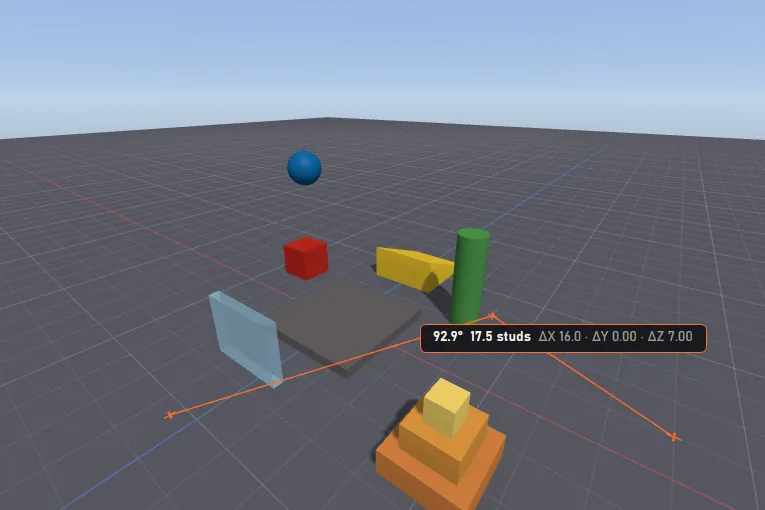
Press Ctrl M, then click points in the world.
- Two clicks give the distance between them in studs.
- A third click gives the angle between the two lines.
- With something selected, it also shows the bounding box, dimensions, centre and height above the ground.
- Esc clears the measurement.
3D text #
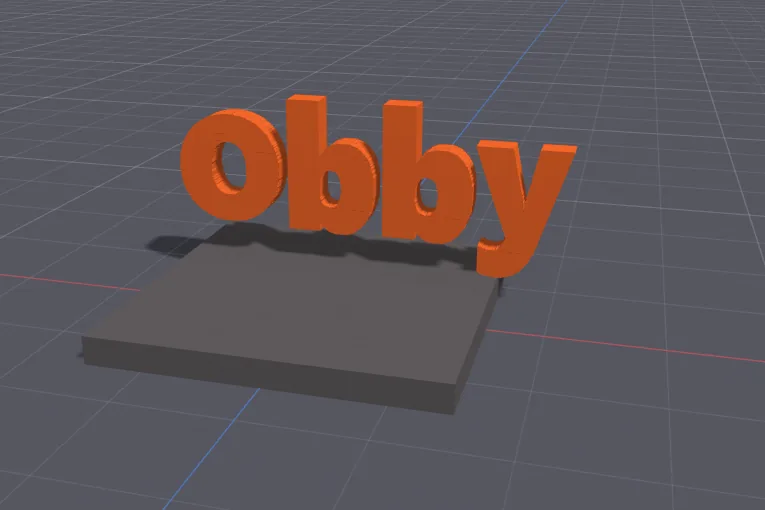
Create › 3D Text (Ctrl Shift T) builds solid lettering out of ordinary parts, so it works in Roblox with no plugins. Type your text, choose the font, height, depth, colour and material, and click Insert. Each letter is its own object, so you can recolour or move single letters afterwards.
Explorer #
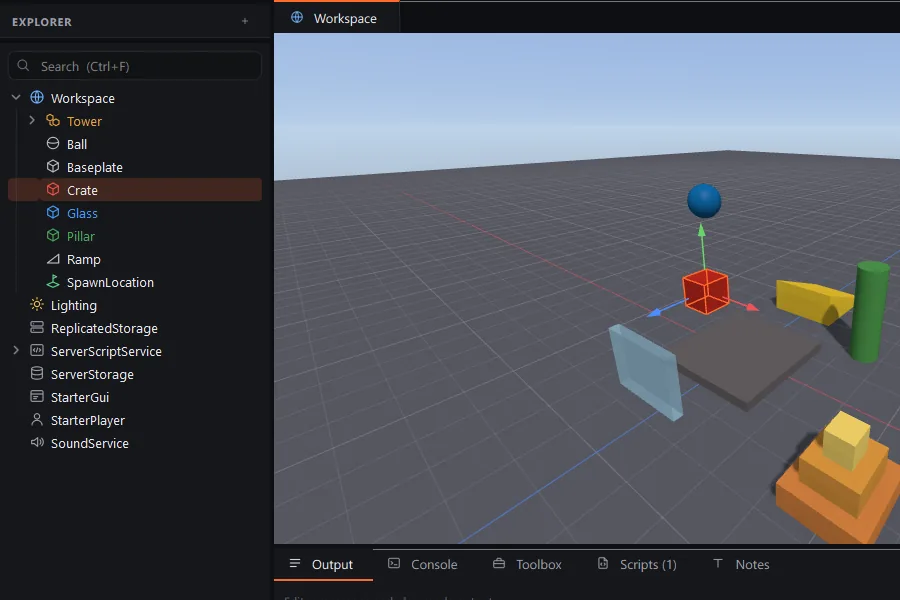
The Explorer shows every object in the place: Workspace, Lighting, ReplicatedStorage, ServerScriptService, StarterGui, StarterPlayer and the rest.
- Search with Ctrl F. It filters the tree to matching objects.
- Drag objects to move them into a different parent.
- Rename with F2. Delete with Delete.
- Double-click a script to open it, or a part to focus the camera on it.
- Right-click for Insert Object, Copy and Paste Properties, Colour, Save to My Assets and more.
- Hover over an object with a developer note to read the note in a tooltip.
Colour labels
Right-click any folder, model or object and choose Colour to tint its icon. Mark all your lobby in blue and your obby stages in orange, and big places become easy to find your way around. Colours are saved in the project and don't affect the game.
Properties #
Properties shows everything about the selection, in groups such as Data, Appearance, Transform, Part, Behavior and Physics. Type in the filter box at the top to find a property by name.
Editing many objects at once
Select as many objects as you like and Properties shows what they have in common, with a heading such as 50 objects selected. Where they differ, the value shows as Mixed. Change it and every selected object gets the new value in one step, which you can undo in one step too.
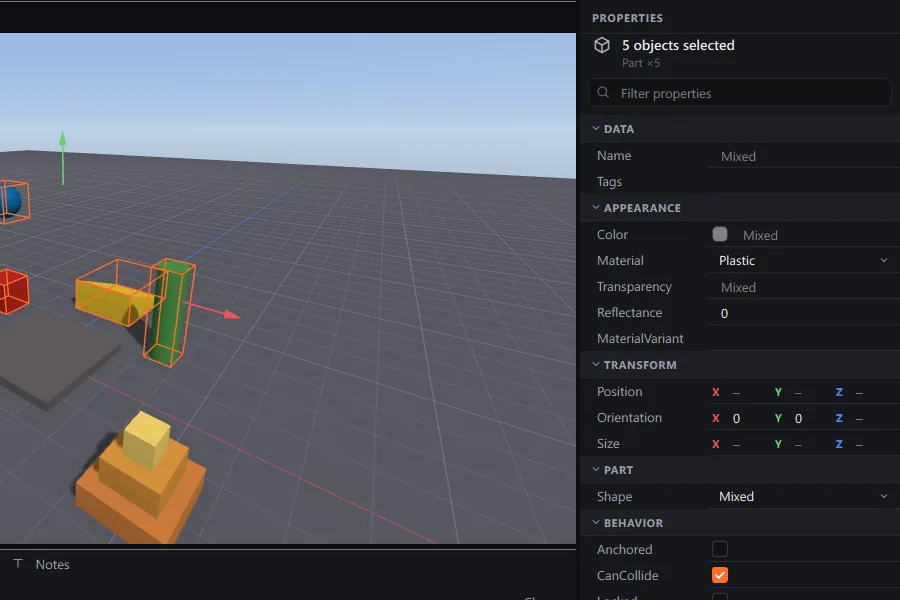
Properties Baseplate can't edit yet are still kept and saved exactly as they were. See Export to Studio.
Copy & paste properties #
Make one part look right, then give the same look to others. Right-click the part and choose Copy Properties, then pick a group:
| Group | What it copies |
|---|---|
| All | Every property that applies |
| Appearance | Color, Material, MaterialVariant, Transparency, Reflectance, CastShadow and similar |
| Physics | Anchored, CanCollide, CanTouch, CanQuery, Massless, custom physical properties |
| Transform | Position, Orientation and Size |
Select the objects you want to change, right-click and choose Paste Properties.
Search everything #
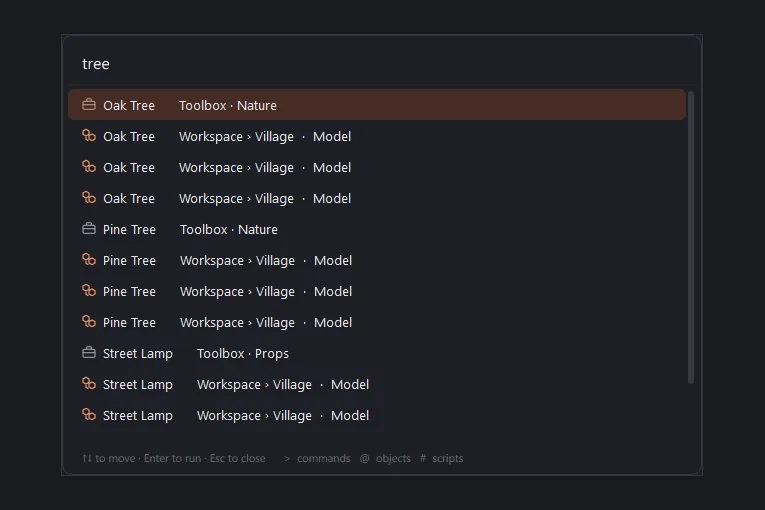
Press Ctrl P or Ctrl K and start typing. One box finds:
- Objects in your place: parts, models, scripts and any other instance. Pick one to select it and fly to it, or to open a script.
- Commands from every menu, with their shortcuts shown, so you never have to hunt for something.
- Settings, tools, recent places and assets.
Use the arrow keys and Enter, or click. Special searches:
| Type | Finds |
|---|---|
tag:Retail | Objects with the CollectionService tag Retail |
tag: | Every tagged object |
note:door | Objects whose developer note mentions door |
Tags #
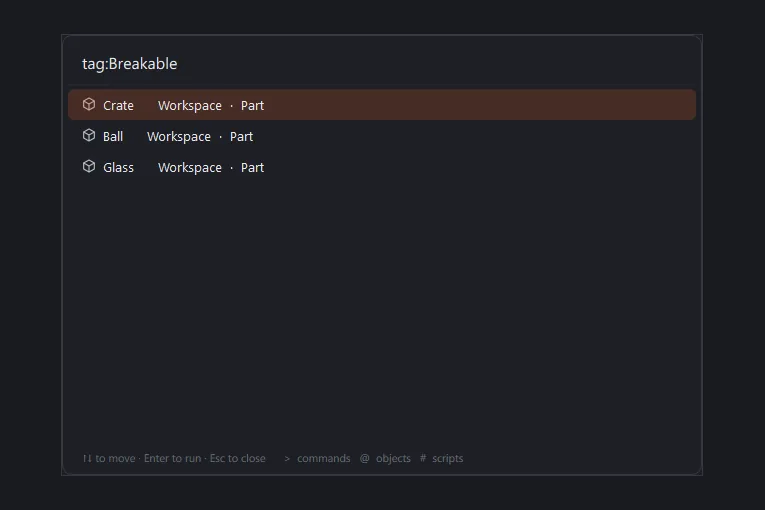
Baseplate uses Roblox's own CollectionService tags, so tags you add here work in your scripts on Roblox, and tags from Studio files show up in Baseplate. Add and remove tags in the Tags property of any object.
Search for them with tag:Name in Search everything, for example to find every Breakable window or every Checkpoint in an obby.
Notes & tasks #
Notes on objects
Every object has a Note field in Properties. Use it for things like "door script goes here" or "resize after playtest". Notes appear as tooltips in the Explorer, and note: searches find them. They're for you and your team only and never reach players.
The Notes tab
The Notes tab in the bottom panel has:
- A free-text area for plans, ideas and things to remember about this place.
- A task list. Type a task and press Enter; tick it off when it's done.
- Objects with notes: every object that has a note, in one list. Click one to go to it.
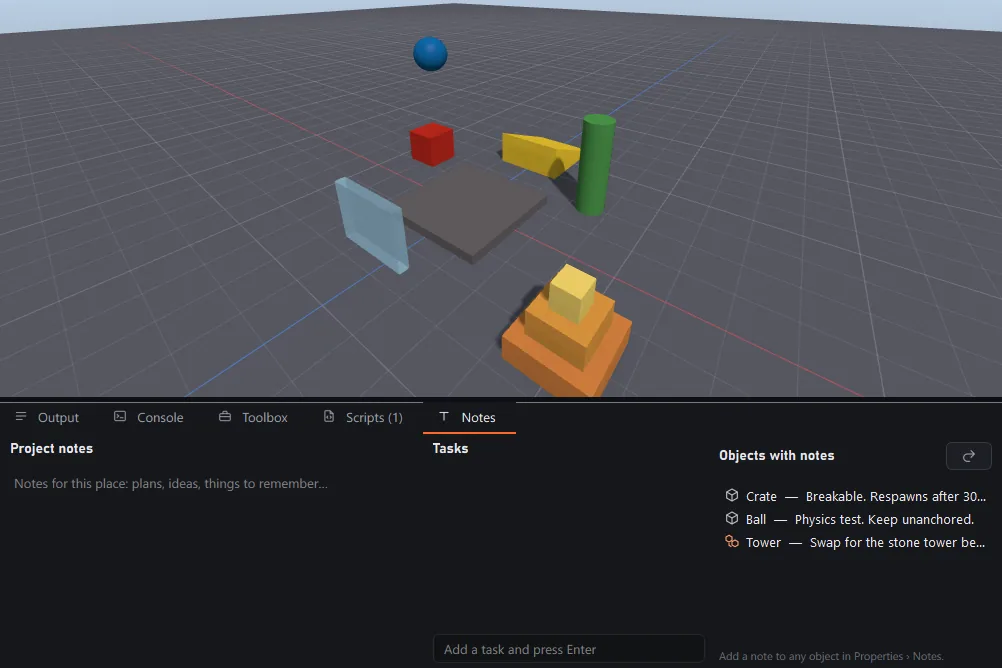
Notes and tasks are saved in the project file.
Toolbox #
Open the Toolbox tab in the bottom panel. Click an item to insert it in the middle of your view, or drag it to the exact spot in the viewport. Search at the top, or choose a category on the left.
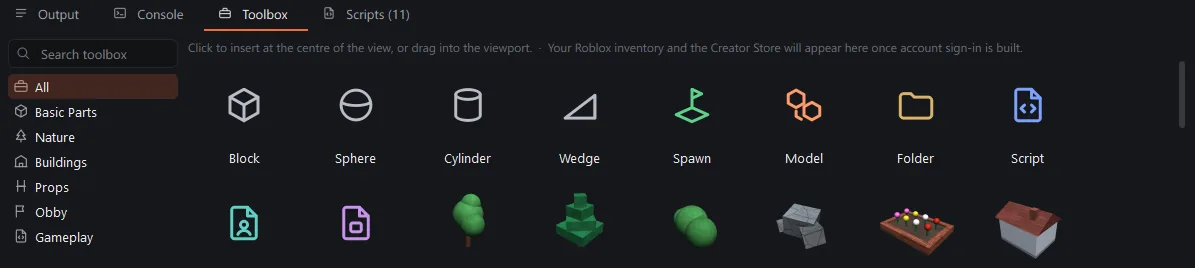
- Built-in models are made by the Baseplate team, so there are no hidden scripts. Obby and gameplay items include ready-to-use Luau scripts that run on Roblox.
- Favourites: right-click any item and choose Add to Favourites.
- Recently Used: the things you've inserted lately.
- My Assets and Community models: see below.
My Assets #
Build something once and reuse it in every project. Right-click a model or part in the Explorer and choose Save to My Assets. Give it a name and a folder (such as Builds or Props), and it appears in the Toolbox with a thumbnail, ready to drag into any place.
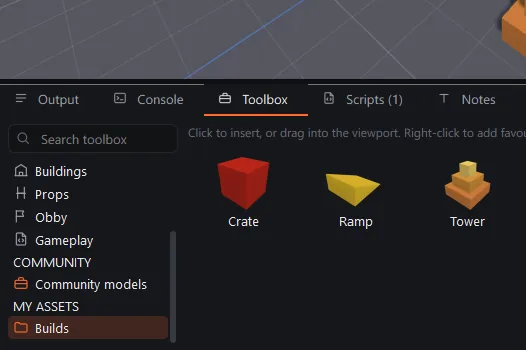
To share a model as a file, select it and choose File › Export Selection as .bpasset. That file can be uploaded to Baseplate Creator.
Community models #
The Community models category shows models shared by other creators on Baseplate Creator. Every upload is checked by the Baseplate team before it appears.
- Click a community model to add it.
- The first time, your browser opens a Baseplate Creator page showing a short code. Sign in (or make a free account) and click Connect if the code matches the one in Baseplate.
- Baseplate carries on and adds the model. From then on it's one click.
Baseplate keeps its own sign-in token in Windows Credential Manager; your Creator password never goes into the app. To disconnect every device, sign out everywhere from your account page on Baseplate Creator. Downloads are checked against the file's fingerprint, so a file that was changed on the way isn't used.
Want to share your own? Make an account on Baseplate Creator and upload a .bpasset model, a decal image or a Luau plugin.
Scripts #
Double-click any Script, LocalScript or ModuleScript to open it in a tab next to the viewport. The editor has Luau syntax highlighting and auto-indent, and changes save into the project as you type. Change the font size and tab width in Studio Settings › Script Editor.
Which script goes where
Roblox only runs scripts in certain places. Baseplate's Check for Roblox warns you when one is in the wrong spot.
| Type | Runs on | Put it in |
|---|---|---|
| Script | The server | ServerScriptService (or inside a part in Workspace) |
| LocalScript | Each player's device | StarterPlayerScripts, StarterCharacterScripts, StarterGui or ReplicatedFirst |
| ModuleScript | Wherever it's required | ReplicatedStorage (shared) or ServerScriptService (server only) |
The Scripts tab in the bottom panel lists every script in the place, which helps in big places.
Play mode #
Press F5 (or Test › Play) to run a physics test: unanchored parts fall, roll and collide. The status bar shows PLAY. Press Shift F5 to stop, and the place goes back exactly to how it was before you pressed Play.
World settings such as gravity and walk speed come from Game Settings.
Luau scripts don't run inside Baseplate yet; this is being built now. To see your scripts working, use Test in Roblox Studio or Test on Roblox.
Check for Roblox #
Press F7 (Test › Check for Roblox) before you test or publish. Baseplate checks the whole place in a second or two and lists anything that would go wrong on Roblox:
- Script errors: every script is compiled with Luau, the same compiler Roblox uses, so typos and syntax errors are caught with the exact line.
- Scripts in the wrong place: a Script in StarterGui or a LocalScript in ServerScriptService never runs. Baseplate tells you where to move it.
- Common mistakes: using
Players.LocalPlayerin a server Script, relying onloadstring, or requiring someone else's module by ID. - Missing spawn: no SpawnLocation means players appear at the centre of the map.
Problems are marked as errors, warnings or notes. Double-click one to go straight to it; scripts open at the right line.
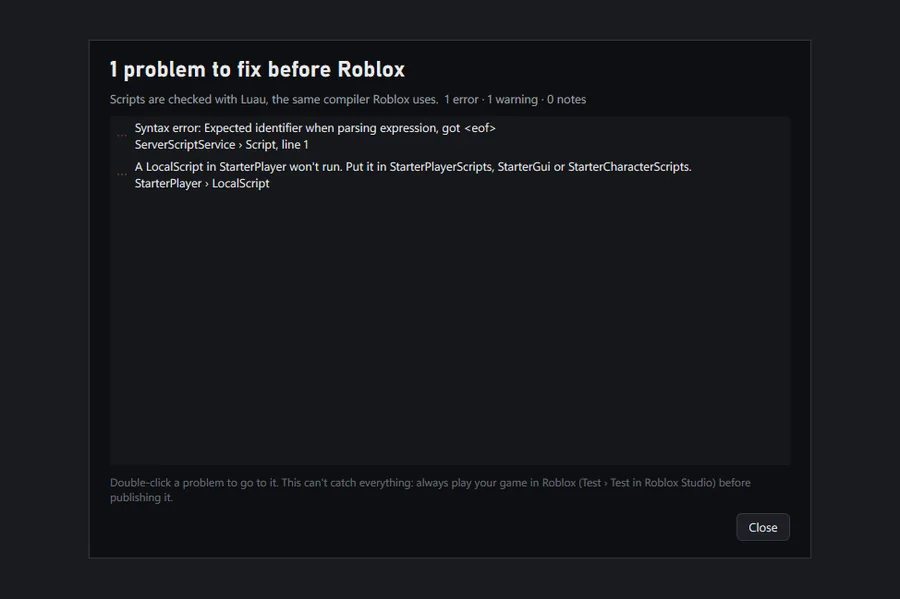
The check can't catch everything, such as logic mistakes. Always play your game on Roblox before publishing it.
Testing in Roblox #
Two ways to see your game running on the real Roblox engine, with your scripts:
Test in Roblox Studio (Ctrl F5)
Baseplate writes a test copy of the place and opens it in Roblox Studio, where you press Play. Your project isn't changed. Roblox Studio needs to be installed. If Studio still has the last test copy open, close it first.
Test on Roblox (Alt F5)
Baseplate publishes the place to a separate private test place and opens it in Roblox, so you can play it as players will, even on your phone. Your real game is never touched.
- The first time, create a new experience on the Creator Dashboard. Leave it private so only you can join.
- Paste its link (or place ID) into the Test on Roblox window. You only do this once per project.
- From then on, Alt F5 uploads and opens it in one go.
Test on Roblox needs an API key with publishing permission. See Publish to Roblox.
Large places take a few seconds to prepare. A progress window shows while that happens, and the editor stays responsive.
Project performance #
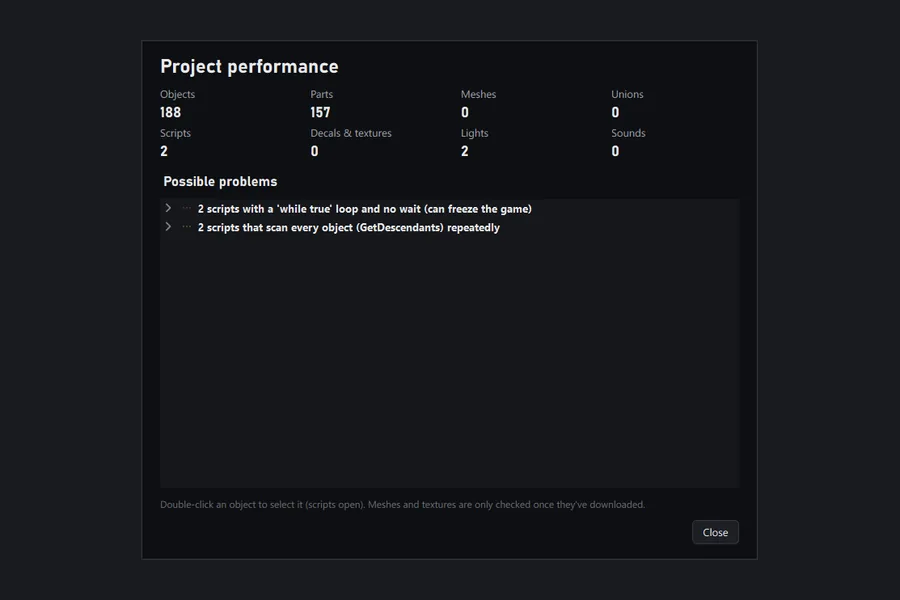
Tools › Project Performance gives a quick health check of the place: how many parts, meshes, unions, scripts, decals and textures it has, and a list of possible problems, such as very heavy unions or scripts with loops that never pause.
Double-click any item to select it (scripts open). Meshes and textures are counted once they've downloaded.
Opening Studio files #
Use Open Roblox Studio file on the Home screen, or File › Open. Baseplate reads:
.rbxland.rbxlx: whole places (binary and XML)..rbxmand.rbxmx: models.
To get a file from Studio, use File › Save to File As there. A progress window shows while large places load, and you can cancel it at any time. Very big places, with hundreds of thousands of objects, take a little longer the first time while unions are built; after that they're cached.
What you'll see
- Parts, MeshParts, unions, decals, textures, materials, the Sky, Atmosphere and Lighting.
- MeshParts, unions and textures need a Roblox connection to download. Until then they show as plain boxes.
- Unions you don't own, or whose data Roblox keeps private, are drawn using their collision shape, so they keep roughly the right form.
- Terrain isn't drawn yet, but its data is kept and saved back unchanged.
Opening a Studio file never changes it. Saving gives you a Baseplate project, and exporting writes a new Roblox file.
Connect Roblox #
You sign in with Roblox when Baseplate first opens. To download meshes, textures and materials, Baseplate also uses Roblox's official Open Cloud API with an API key from your own account. It never asks for your password, and the key is only ever sent to apis.roblox.com.
- Open Tools › Roblox Connection (or Connect Roblox on the Home screen).
- Click Open Roblox Credentials page and choose Create API Key. Name it Baseplate.
- Under Access Permissions, add the Legacy Asset (asset delivery) API with Read.
- To publish and use Test on Roblox, also add universe-places with Write and select your experiences.
- Under Accepted IP Addresses, add
0.0.0.0/0(or your own IP). - Save, copy the key, paste it into Baseplate and click Test & Save.
The first time you open a big place it can take a few minutes to download everything; the status bar shows how many are left. After that, everything is cached and loads straight away.
Group keys
Meshes, textures and games owned by a Roblox group need a key made by that group. If you can manage the group's API keys:
- In the Creator Dashboard, switch to the group from the account menu at the top left.
- Go to Credentials › Create API Key, add Legacy Asset with Read (and universe-places with Write to publish), and accept IP
0.0.0.0/0. - In Baseplate's Roblox Connection window, add it under Group keys with a name, such as the group's name.
Baseplate tries each key in turn when an asset is private, so add as many groups as you work with.
Publish to Roblox #
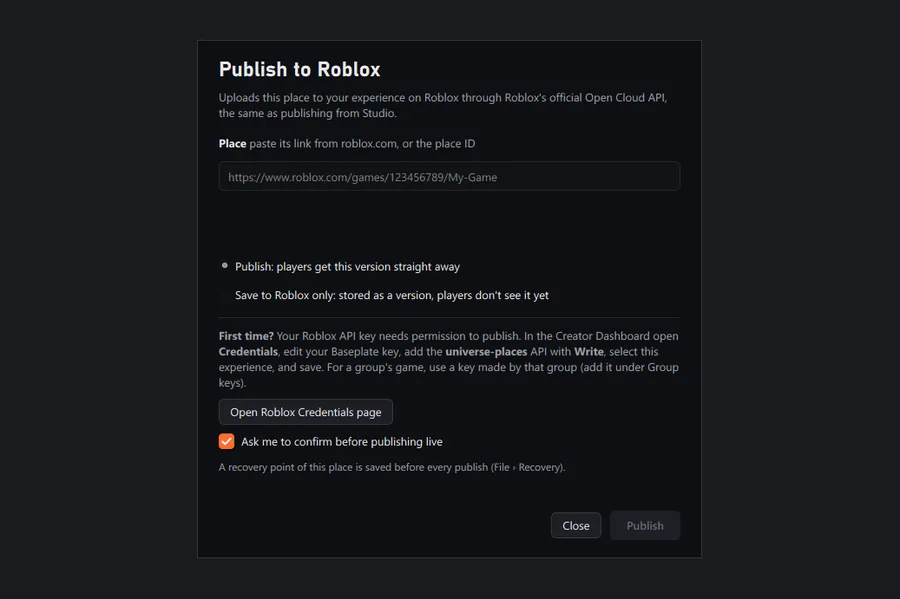
Click Publish in the header, or press Alt P. Baseplate uploads the place to your experience through Roblox's official Open Cloud API, the same as publishing from Studio.
- Make sure your API key has universe-places with Write for this experience (see Connect Roblox).
- Paste the place's link from roblox.com (for example
https://www.roblox.com/games/123456789/My-Game) or just its place ID. Baseplate remembers it for this project. - Choose how to publish:
Publish: players joining new servers get this version straight away.
Save to Roblox only: stored as a new version, but players don't see it yet. Make it live later from Studio or the Creator Dashboard. - Click Publish.
Safe publishing
- The window shows when you last published from Baseplate, which version that was, and how many edits you've made since.
- Changes since the last publish lists exactly what's different, so you can check before going live.
- Optionally, Baseplate asks you to confirm before publishing live. Turn it on or off in the window.
- A recovery point is saved before every publish.
- Roblox keeps every old version too, so you can always roll back from Studio or the Creator Dashboard.
Baseplate won't use the place you publish your game to as a test place, so a test build can't replace your real game by mistake.
Export to Studio #
File › Export as Roblox Place (Ctrl E) writes a .rbxl (or .rbxlx) file you can open in Roblox Studio with File › Open from File. Use it to carry on in Studio, share a place file, or keep a backup.
Export is lossless. Every property Baseplate read is written back, including ones it can't edit yet, so unions, welds, constraints, attributes, scripts and terrain data come through unchanged. Every Baseplate release is tested by opening, saving and exporting real places with millions of property values and comparing them value by value; a build that loses anything isn't released.
Baseplate is still early, so keep a copy of your original place file anyway.
Game Settings #
File › Game Settings edits the settings saved inside the place, so Roblox uses the same values:
| Page | What's on it |
|---|---|
| Basic Info | The place's name. The description, icon and thumbnails live on Roblox and are edited on the Creator Dashboard. |
| World | Gravity, walk speed, jump power or jump height, and max slope angle. Saved in Workspace and StarterPlayer. Reset to Roblox defaults puts them back. |
| Avatar & Camera | Character and camera settings from StarterPlayer, such as camera mode and the min and max zoom distance. |
| Security | Allow HTTP requests (HttpService). Studio access to API services and third-party sales are set on Roblox. |
Saving & autosave #
- Ctrl S saves the project; Ctrl Shift S saves a copy somewhere else.
- When you've opened a Roblox file, the first save asks where to put the new
.bpproj. Your original.rbxlis never overwritten. - Autosave saves your project at an interval you choose in Studio Settings › General.
A .bpproj keeps everything: the place, all original Roblox data, colour labels, notes, tasks, and publish details.
Recovery points #
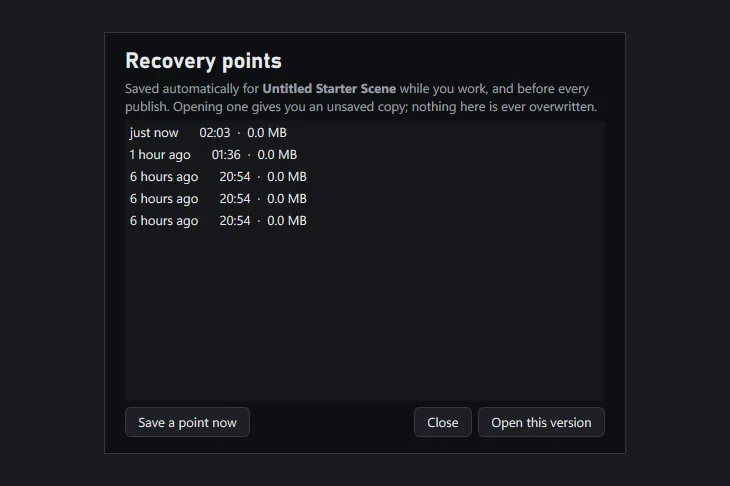
Separately from saving, Baseplate keeps recovery points of every open place while you work, so a crash, a power cut or a bad change never costs you more than a couple of minutes.
- A point is saved every couple of minutes while you have unsaved changes, and before every publish.
- Older points are kept at intervals: a few minutes ago, ten minutes ago, an hour ago, yesterday. The previous backup is never deleted to make room for a new one.
- File › Recovery lists them all with the date and time. Open this version gives you an unsaved copy, so nothing is ever overwritten. Save a point now makes one on demand.
- If Baseplate closes unexpectedly, it offers to recover your previous session the next time it opens.
Studio Settings #
File › Studio Settings (Alt S) changes how Baseplate works for you. It never changes your places.
| Page | What you can change |
|---|---|
| Camera | Mouse sensitivity, speed while holding Shift, invert vertical look |
| Viewport | Show the ground grid, show sun shadows |
| Script Editor | Font size and tab width |
| General | Autosave on or off, and how often |
| Appearance | Light or dark theme, accent colour, density (Compact or Comfortable), names next to tool icons |
| Updates | Check for updates when Baseplate starts; stable or beta channel |
| Shortcuts | Change any keyboard shortcut. Click one and press the keys you want; Backspace clears it; Reset all shortcuts goes back to the defaults. |
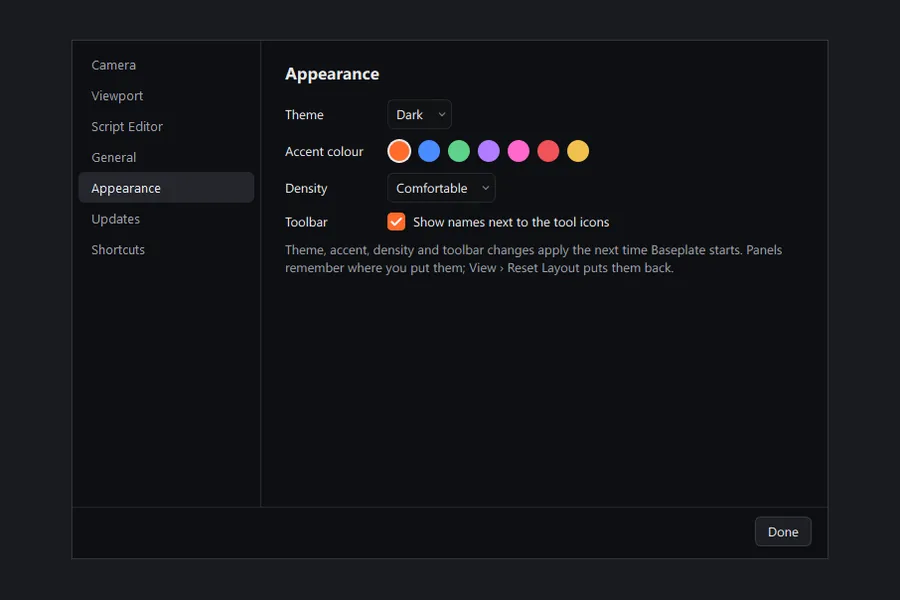
Theme, accent, density and toolbar changes apply the next time Baseplate starts; there's a Restart Baseplate now button for that.
Updates #
Baseplate checks for a new version when it starts and offers to install it. You can also use Help › Check for Updates at any time. Updates keep your settings, projects and keys.
Want new features first? Turn on Help › Get Beta Updates (or choose Beta in Studio Settings › Updates). Beta builds arrive earlier and may have bugs; switch back to stable at any time. See the changelog for what's in each release.
Your data & keys #
- Your projects are files on your PC, saved wherever you choose. Baseplate doesn't upload them anywhere unless you publish or use Test on Roblox.
- Roblox sign-in happens on roblox.com. Baseplate never sees your Roblox password.
- API keys and the Baseplate Creator token are stored in Windows Credential Manager, encrypted to your Windows account, and are only sent to Roblox's API or Baseplate Creator respectively.
- Downloaded meshes, textures and unions are cached on your PC so places open faster next time.
- To remove a key, delete it in the Roblox Connection window or revoke it on the Creator Dashboard's Credentials page.
All keyboard shortcuts #
These are the defaults. Change any of them in Studio Settings › Shortcuts, and press Ctrl / in the app to see your current set.
File
| Action | Shortcut |
|---|---|
| New Project | Ctrl N |
| Open Project | Ctrl O |
| Save · Save As | Ctrl S · Ctrl Shift S |
| Export as Roblox Place | Ctrl E |
| Publish to Roblox | Alt P |
| Studio Settings | Alt S |
| Close Project | Ctrl Shift W |
Edit
| Action | Shortcut |
|---|---|
| Undo · Redo | Ctrl Z · Ctrl Y |
| Copy · Paste | Ctrl C · Ctrl V |
| Duplicate | Ctrl D |
| Delete · Rename | Delete · F2 |
| Select All | Ctrl A |
| Group · Ungroup | Ctrl G · Ctrl U |
| Union · Negate | Ctrl Shift G · Ctrl Shift N |
| Intersect · Separate | Ctrl Shift I · Ctrl Shift U |
| Find in Explorer | Ctrl F |
| Search everything | Ctrl P or Ctrl K |
Tools & creating
| Action | Shortcut |
|---|---|
| Select · Move | Ctrl 1 · Ctrl 2 |
| Scale · Rotate | Ctrl 3 · Ctrl 4 |
| Transform · Measure | Ctrl 5 · Ctrl M |
| Snap to Grid | Ctrl Shift J |
| Insert Block | Ctrl Shift P |
| 3D Text | Ctrl Shift T |
View & test
| Action | Shortcut |
|---|---|
| Focus selection | F |
| Explorer · Properties | Alt X · Alt Shift P |
| Bottom panel · Show UI | Alt O · Alt U |
| Play · Stop | F5 · Shift F5 |
| Check for Roblox | F7 |
| Test in Roblox Studio | Ctrl F5 |
| Test on Roblox | Alt F5 |
| Keyboard Shortcuts | Ctrl / |
Troubleshooting #
Windows says it protected my PC
That's SmartScreen, because the app isn't code-signed yet. Click More info, then Run anyway. Only download Baseplate from getbaseplate.org.
Meshes and unions show as grey boxes
They haven't downloaded. Check Tools › Roblox Connection has a working key with Legacy Asset read access, and that you're online. For assets owned by a group, add a group key. Assets that are private to someone else's account can't be downloaded by anyone but their owner, so those stay simplified.
Materials look flat
Material textures download through the same connection as meshes. Once your key is set up they appear automatically.
Publishing says the key isn't allowed
Edit your key on the Creator Dashboard's Credentials page: add universe-places with Write, make sure this experience is selected, and save. For a group's game, the key must be made by the group.
Test in Roblox Studio says it can't write the file
Studio probably still has the last test copy open. Close that Studio window and press Ctrl F5 again.
A big place is slow to open
The first open builds every union and downloads every mesh and texture. Later opens use the cache and are much faster. The progress window can be cancelled at any time.
I lost some work
Open File › Recovery. Points are saved every couple of minutes while you have unsaved changes, and going back to yesterday. See Recovery points.
My panels have gone
Use View › Reset Layout, or the View menu to show a panel again.
Still stuck?
Post in #help on the Baseplate Discord. For bugs, use #bug-reports with your Baseplate version (Help › About Baseplate), what you did, and what happened. See the community page for what to include.
FAQ #
Is Baseplate made by Roblox?
No. Baseplate is an independent project and is not affiliated with, endorsed by, or sponsored by Roblox Corporation. It talks to Roblox only through Roblox's official, public Open Cloud APIs.
Is it free?
Yes. Baseplate is always free.
Can I publish to Roblox from Baseplate?
Yes. Publish (Alt P) uploads straight to your experience through Open Cloud. See Publish to Roblox.
Does it replace Roblox Studio?
For building, organising, checking and publishing, that's the aim. Some things still need Studio for now, such as running scripts (Play mode is physics-only so far), terrain editing and avatar tools. See the roadmap for what's coming.
Will my Studio places survive?
Yes. Import and export keep every property, including ones Baseplate can't edit yet, and every release is tested against real places before it ships. Keep a backup of anything important anyway, as with any early software.
Can I work in Baseplate and Studio on the same place?
Yes. Export to .rbxl to carry on in Studio, and open a Studio file to come back. Publishing from either goes to the same experience.
When can I download it?
Soon. Join the Discord to hear the moment downloads open.
Mac or mobile?
Windows only for now. Test on Roblox lets you play your game on any device, though.
Where do I get help?
Join the Baseplate Discord and post in #help. Report bugs in #bug-reports. See the community page for what to include.